// Guide
Getting Started
From inviting the bot to running your first event — a 10-minute walkthrough for new admins.
So you've decided to give StarBot a try. This guide takes you from the invite link to a working configuration in about 10 minutes. We'll set up just enough that members can verify their RSI handle, apply to your org, and RSVP for events — the three things most guilds use first.
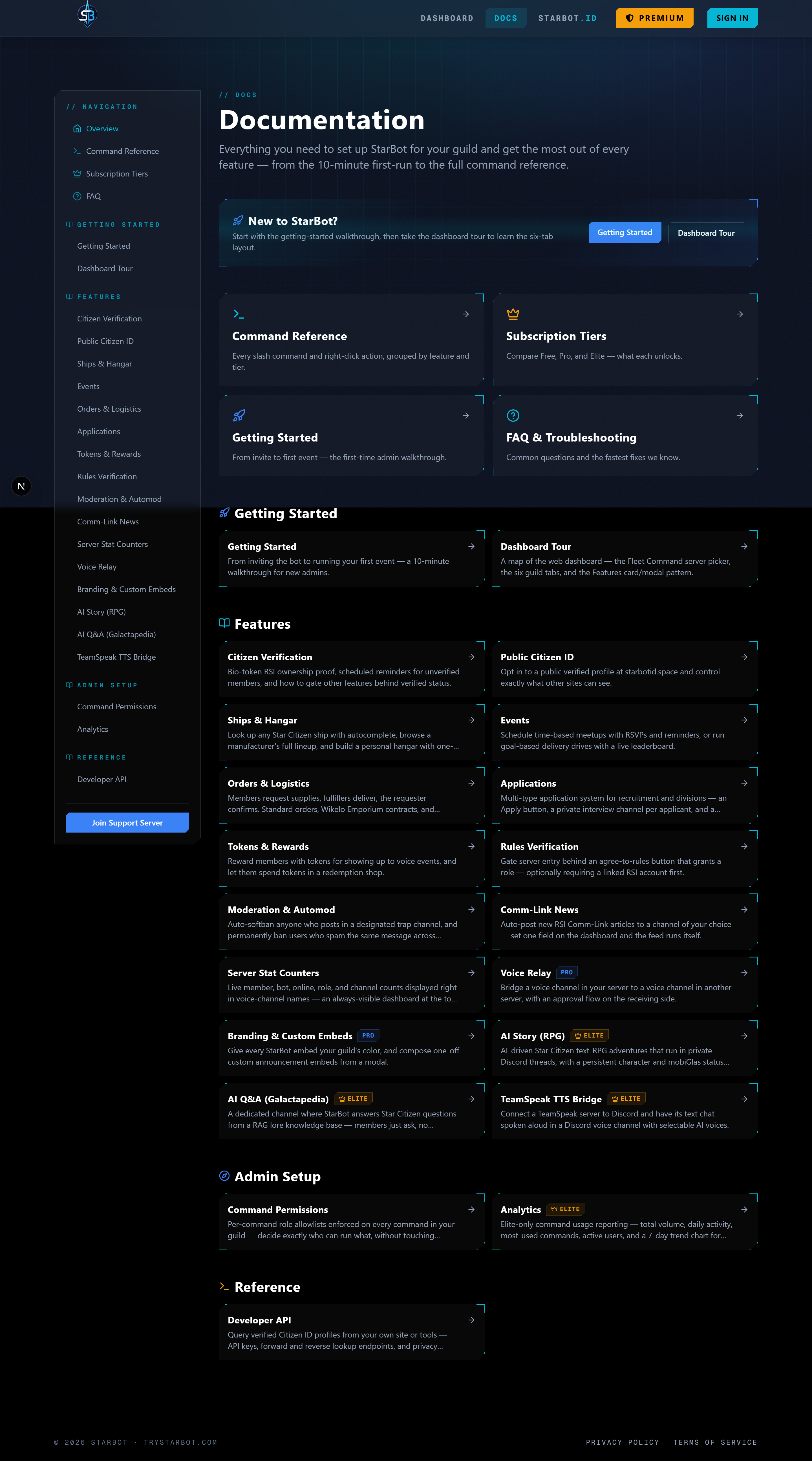
One thing to know before we start: the guild dashboard is a single page with six tabs — Features, Permissions, Server Stats, Analytics, Events, and Tokens. Most features (citizen verification, orders, applications, moderation, and so on) live as cards on the Features tab: toggle the card on, click Configure, adjust the modal, hit Save Changes. Events and Tokens are big enough to get their own tabs. If a doc or old screenshot mentions a "Citizen tab" or "Orders tab", it means a card on the Features tab. The Dashboard Tour walks the whole layout if you want the map first.
- 1
Invite the bot. Open the Discord App Directory page for StarBot and click Add to Server. Choose your guild and grant the requested permissions.
The easiest path is granting
Administrator. If you prefer a least-privilege setup, grant at minimum:Manage Roles,Manage Channels,Manage Events,Send Messages,Embed Links, andRead Message History. TheManage Eventspermission is the one that surprises people — without it, StarBot can't mirror your scheduled events into Discord's server-sidebar Events tab. - 2
Open the dashboard. Go to trystarbot.com and log in with Discord. After OAuth you land on Fleet Command — the server picker at
/dashboard. Find your guild's card and click Initialize Link.If your guild's card says Invite Bot instead, the bot isn't in that server yet — the button takes you back to step 1. If the guild doesn't appear at all, you don't have
Manage GuildorAdministratorpermission in it; ask the guild owner to grant you the permission, then log out and back in.You're now on your guild's admin page, open to the Features tab by default. A "Systems Online" chip in the header confirms the bot is connected; "Signal Lost" means it's offline or was kicked. Nearly every dashboard panel has a matching
/config-*slash command in Discord — both write to the same settings, so use whichever is faster for you. - 3
Enable citizen verification. Most StarBot guilds use the verification badge to confirm members actually own the RSI handle they claim. On the Features tab, find the Citizen Data card, toggle it on, and click Configure. In the modal's Verification + Reminders section, check "Enable bio-token verification + reminders", optionally pick a reminder channel and delivery style, then click Save Changes.
Members can now run
/citizen set handle:YourHandlefollowed by/citizen verifyin Discord. The full lifecycle — token generation, bio matching, reminder tuning — is in the Citizen Verification guide. - 4
Set up applications. If you want a recruitment funnel into your guild or org, application types (name, questions, role to assign on approval, review channel) are created in Discord with
/config-appsadmin. The dashboard's Applications card on the Features tab holds the on/off toggle plus one setting: a checkbox to require a verified RSI citizen before someone can submit.Once a type exists, run
/post-appadmin in the channel where you want the "Apply Now" button visible. Members click, fill in the questions, and your reviewers get approve/deny buttons in the review channel. - 5
Create your first event. Events get their own tab on the dashboard. Open it, toggle the system on under Event System Settings, and set a Default timezone as an IANA name like
America/Chicago(notCST— abbreviations break DST handling). Then click New Event — or do it all from Discord with/event createadmin, e.g./event create type:Server-Wide title:Friday Ops Night date:2026-08-01 time:20:00.Two flavors: time events (scheduled meetups with RSVPs, reminders, and optional capacity) and goal events (delivery drives with item targets and a live leaderboard). The bot posts an RSVP embed in the type's board channel and mirrors time events into Discord's sidebar Events tab. See the Events guide for recurring events, auto-created voice channels, and the goal-drive lifecycle.
- 6
Explore the rest of the Features grid. With the basics running, skim the remaining cards — each one is toggle + Configure + modal, and each has its own guide.
Here's roughly what you're looking at on the Features tab:
Everything above can also be configured with slash commands: /config-citizenadmin, /config-appsadmin, /config-eventsadmin, and friends. The command reference lists them all with arguments and required tiers.
Where to go next
- Dashboard Tour — the full map of all six tabs, the Features card/modal pattern, and the twelve feature cards.
- Citizen Verification — token generation, bio matching, the reminder system, and gating other features behind verified status.
- Events — recurring events, capacity + waitlist, broadcast channels, auto-voice channels, and goal-drive leaderboards.
- Subscription Tiers — what's free, what's Pro/Elite, and how to upgrade.
- FAQ — the questions we get most often.
You're done with the minimum setup. Pop into our support server if you get stuck — we're active.